|
Setting dimension value |
Scroll |
The dialog allows you to set the values of the following dimensions:
•associative sketch sizes and operation dimensions (see the section for more details. Dimensions of sketches and operations),
•derivative dimensions — dimensions of the sketch or operation, represented as detailing elements,
•associative linear, angular, diametrical and radial dimensions of a drawing or sketch, placed in parametric mode.


The set of dialog controls depends on the size for which the dialog is called. An example of a dialog called for a derived size is shown in the figure. A description of the dialog controls is given in the table.
|
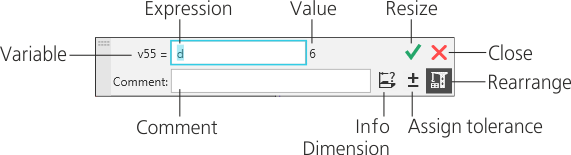
Set dimension value dialog
Description of Controls
Name |
Description |
|
Variable |
The field contains the name of the variable corresponding to the size. When working with an associative size in a sketch or graphic document, the field is available for changing the variable name. |
|
Expression |
A field to enter a size value: a number, a constant, or expressions for value calculation. Not available for informational size. To set the value of the angular size in the format XX°XX’XX" call the team Degrees, Minutes, Seconds from the context menu of the field. |
|
Value |
Info field that displays the current size value. |
|
Comments |
The field to enter a comment to the variable. |
|
|
Info Dimension |
The button manages the type of size: •button pressed – size information; the size value cannot be manually set; •button pressed – size manager; size value is available for the job. When calling the dialog for operation sizes, Info Dimension button is missing. |
|
Assign tolerance |
The button allows you to assign a size tolerance. Opens the Dialog for assigning a tolerance. It includes the Tolerance toggle switch that controls whether dimension has tolerance, and tolerance assignment elements. |
|
Rearrange |
The button manages the automatic rearranging of the model after closing the dialog: •If the button is selected, after closing the dialog the model will be rearranged in accordance with the changes made, •If the button is released, then after closing the dialog the model will not change; requires independent Rebuild the model. When you open a dialog in a graphic document or a thumbnail, Rearrange button is missing. |


To complete the work in the dialog and save the changes, click the Change size  .
.
Close  button allows you to exit the dialog, discarding the changes.
Features of specifying size values
•Operation size
If the dimension value is edited during the operation, then after changing the dimension value and completing the work in the dialog, the phantom of the created object is rebuilt regardless of the state of the Rearrange button.
•Dimension without Variable
If when changing the dimension value in the Field an expression or constant is entered, then after completing the work in the dialog, the content of this field is replaced with the calculated dimension value. This value is displayed in the field the next time you open the dialog.
The comment specified in the dialog is not saved — the field The comment becomes empty.
•Converting a Controlling Dimension to an Informational Dimension
If the dimension value is set by a constant or expression, then after clicking the Informational dimension  and completing the work in the dialog, the content of the Expression field is replaced by the calculated dimension value. This value is displayed in the field the next time you open the dialog.
See Also
Controlling and informational dimensions. Dimensions with Variables
