|
Ambiguous constraints and blocked dimensions |
Scroll |
If the constraint icon has an orange color and the symbol "x" is displayed to the left of the icon (see illustration), then such a constraint is ambiguous. Ambiguous constraints include excessive constraints and poorly defined constraints (a detailed description of these constraints is provided below).
|
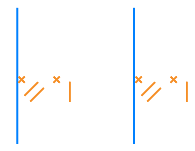
Display ambiguous constraints
In some cases, added constraints or dimensions may block dimensions created earlier. Blocked dimensions, like ambiguous constraint icons, are orange in color.
|
Ambiguous constraints are not considered erroneous and in most cases do not affect operations with the sketch. However, in some cases, the combination of constraints and dimensions in a sketch forms an unreliable system of constraints and can lead to errors in the model or cause problems during editing. Such a sketch is marked with the symbol “!” and receives the status sketch requiring attention (see section on sketch statuses). Diagnostics of a parametrized sketch). To ensure correct work with the model, we recommend that there are no sketches requiring attention in it. Edit the set of constraints and dimensions of such sketches to change their status. In this case, pay attention to the orange dimensions and the constraints marked as ambiguous. The procedure for changing the sketch status is described in section Changing the status of the sketch and its objects. |

Further in this section:
Poorly conditioned constraints
Viewing ambiguous constraints in a group of constraints with the same type
Excessive constraint — a constraint, the addition of which does not remove any degree of freedom.
A constraint might become redundant immediately after its creation or after the addition of other constraints. Not only the redundant constraint itself is highlighted in orange, but also other constraints, each of which, if removed, eliminates the redundancy. You can select which constraint to keep and which to delete (see the below figures).
Redundant constraints do not hamper normal operations with the model/graphic document.
The drawings show the constructed rectangle in the sketch. In the process of constructing, the constraints Verticality and Horizontality were automatically applied to the sides of the rectangle. Then, for the horizontal sides, a constraint Equal Lengths was created. It is redundant and is immediately filled with orange color. Moreover, the constraint icons for Verticality, applied to the sides of the rectangle, have turned orange (Fig. a). Remove the added constraint Equality of lengths. The constraint icons Verticality have ceased to be displayed as redundant (see fig. b). You can leave the Equal Length restriction in the sketch while removing the Verticality restriction applied to one of the sides of the rectangle. The remaining constraints will cease to be displayed as redundant (Fig. B).
|
|
|
a) |
b) |
c) |
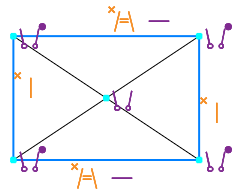
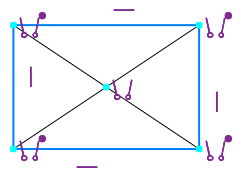
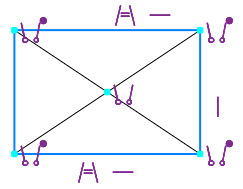
Remove Excessive Constraints:
a) constraints Verticality and Equality of lengths are shown as redundant,
b) a constraint Equality of lengths removed, c) one of the constraints Verticality removed
Poorly conditioned constraint is a constraint that, in combination with other constraints, forms a non-optimal constraint system for the object. If a dimension is involved in the system, it can be locked (see below).
Of all the constraints forming such a system, only the poorly defined constraint is highlighted in orange color. The remaining constraints included in it are displayed in the usual manner (see figure Poorly conditioned constraint in the sketch constraint system, b).
Poorly conditioned constraints do not hamper normal operations with the model/graphical document. However, you can improve the constraint system. To achieve this, it is necessary to determine which constraints interact with the poorly conditioned constraint (i.e., which other constraints form the constraint system of the object) and modify the set of constraints, especially if a dimension is involved in this constraint system.
The figures show an example of a sketch constraint system with a poorly defined constraint. In the sketch, there are two circles and a segment that is connected to one of them with a Tangency constraint (Figure a). To position a segment vertically between circles, another constraint Tangency, is created, linking the segment and the second circle. This set of constraints does not ensure the vertical position of the segment (it is deviated by 0.00026°), so the created Tangent constraint is considered poorly defined and is highlighted in orange (Figure b). To make the line segment vertical, delete this constraint and apply the Verticality constraint to the segment (Fig. b). Now the segment is positioned in the required manner.
|
|
|
a) |
b) |
c) |
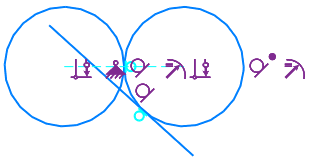
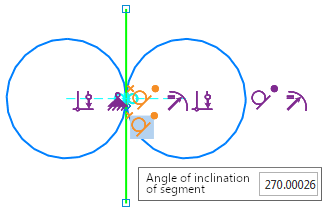
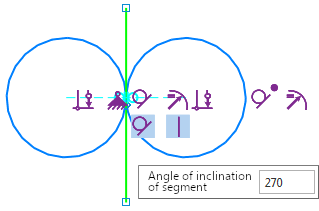
Poorly conditioned constraint in the sketch constraints system:
a) object constraints system before the appearance of a poorly conditioned constraint,
b) poorly conditioned constraint Contact, c) constraint Contact replaced with constraint Verticality
Viewing ambiguous constraints in a group of constraints with the same type
An ambiguous constraint (redundant or poorly conditioned) may be part of a group of several constraints of the same type (for constraint groups, see section). Viewing objects affected by constraint). In this case, the icon representing the group is also colored orange and marked with the symbol "x". The figures show the redundant constraint Parallelism, which belongs to the group of similar constraints applied to the leftmost vertical segment.
|
|
a) |
b) |
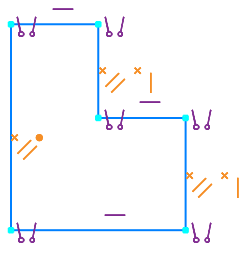
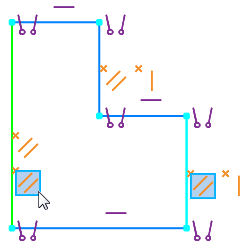
Displaying the redundant constraint Parallelism, part of a group of similar constraints, imposed on the leftmost vertical segment:
a) the group of constraints is collapsed, b) the group of constraints is expanded
A locked dimension — controlling dimension, the value of which can’t be changed due to applied constraints on objects or other controlling dimensions (which also become locked).
In the graphical area, a locked dimension is shown in orange color (in the drawing/fragment, only the marquee around the dimension value is orange). A constraint blocking the dimension is also colored orange and marked with the symbol 'x'. If dimensions are blocking each other, then they all have an orange color.
To restore the dimension's ability to change its value, you need to remove the constraint blocking the dimension; if the blocking is done by another dimension, remove that dimension or make it informational one.
If controlling the image with a locked size is not required, you can make the locked size itself informational or delete it.
The figure shows an example of displaying locked dimensions placed in a sketch to the sides of a triangle. The block appeared after applying the constraint Perpendicularity to the sides of the triangle. To remove the lock, you should delete the constraint Perpendicularity. You can also delete one of the dimensions or make it informational.
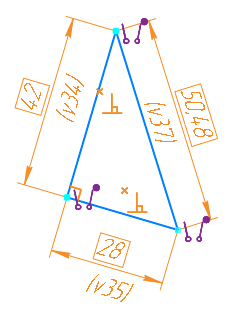
Display in the sketch of locked dimensions and the locking constraint Perpendicularity
See Also
