|
General Information |
Scroll |
The following commands are used for creating bends in a sheet part:
•Bend, Bend by Sketch, Bend by Line, Incision — forming cylindrical bends in a sheet part,
•Flanging — forms cylindrical and toroidal bends in the sheet metal part, as well as bends based on the surface along the trajectory.
You can create elements containing bends only on those portions of the sheet part that have a constant thickness (a sheet part may have a variable thickness as a result of merging two solids of different thickness).
To form a cylindrical bend, the presence of a bend base line is required – a straight-line object that defines the position of the bend in the sheet metal part.
A flat outer or inner face of the sheet part containing a bend line is called a bend base face of this bend.
|
|
|
a) |
b) |
c) |
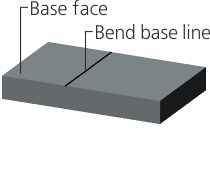
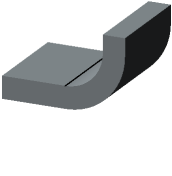
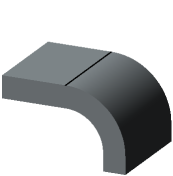
Bend
a) base face and bend base line, b), c) construction result
Not only a straight edge, but also a flat curved edge of a sheet metal part can be used as a bend base line to create a flanging. In this case, the base face can be non-flat.
|
|
a) |
b) |
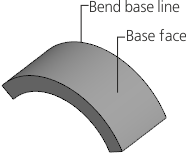
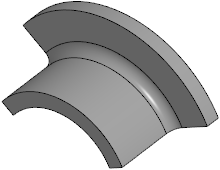
Flanging
a) base face and bend base line, b) result of plotting
|
You cannot apply the bend creation commands if a sheet part consists of several portions (for example, it is split by a cut operation). To create bends, first make a part as whole by editing the existing elements or creating new elements which will join the portions. |

Bend Display in the Model Design Tree
Bend icons in the Design tree are located in the branches of their source objects – those sheet elements which contain them (see Figure).
|
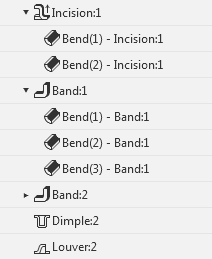
Example of bend display in the Design tree
Some elements, for example, an incision may contain multiple bends. To view the list of bends, expand the Design tree branch corresponding to the source sheet element.
Each bend is automatically named. It contains the sequence number in a sheet element and the name of this element.
You can edit the bend parameters without editing the whole sheet element that contains this bend. To do this, use the Edit command from the context menu of the bend.
