|
The dialog Versions control |
Scroll |
The dialog appears on the screen after calling the Versions control command.  .
.

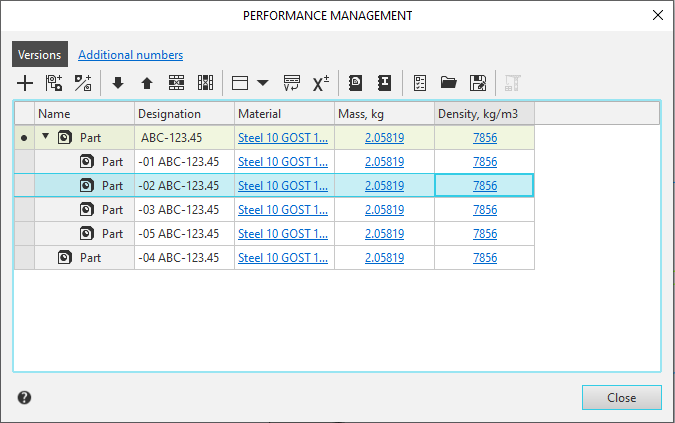
The dialog is designed for working with model versions and additional version numbers.
To perform various actions with the versions, the page is used Versions. Working with additional performance numbers is performed on the page Additional numbers.
All changes made in the dialog are automatically saved. To exit the dialog, click the Close button.
The Versions page contains a table of versions and a toolbar (the buttons are described below).
The table shows a list of model versions and the values of the version properties.
The list of executions is displayed in the Name column. Its structure follows the structure Model versions tree. Each version in the list has a name and icon. The rows for all versions except the current one are gray; the row for the current version is light green. Additionally, the icon is displayed in the row for the current version.  . It's located in the first column of the table. To make a different version current, click the cell in the first column corresponding to the desired version.
The list of versions contains all the versions of the model available in the document. Changes to the list, such as adding, moving, and deleting performances, are automatically transferred to the Version Tree. These actions cannot be undone in the dialog.
Performance properties are displayed in the table as separate columns. The set of columns containing property values is configurable. More about setting...
The list of properties is the same for all model versions. Property values may vary for different versions.
Values for some properties (such as Comment) can be entered directly into a cell. If a special dialog is used to specify a value, it appears on the screen after clicking the cell. For example, clicking a cell in the Mass, Material, or Density column displays the dialog CMP, which allows you to set the values of the corresponding performance properties, as well as recalculate the model's CMP.
Property values defined in the document are displayed in black. Values retrieved from a reference source or written to the file by the operating system are displayed in blue.
|
The values of some properties cannot be changed. Cells containing these property values are grayed out. Additionally, cells that are not accessible for manual input are grayed out. |

Description of toolbar elements
Name |
Description |
|
|
Create an independent version |
This button allows you to create an independent version of the model. Its source is the version selected in the dialog's versions list. If the source version is mirrored, the button is unavailable. After clicking the button, the new rendition appears in the dialog's versions list and in the rendition tree. It is located at the first level of the hierarchy and occupies the last position in the versions list. |
|
Create a dependent version |
This button allows you to create a dependent model implementation. Its source is the implementation selected in the dialog's implementation list. If the source implementation is a mirror, the button is unavailable. After clicking the button, the new version appears in the dialog's version list and in the Versions Tree. It is subordinate to the source version. |
|
Create a mirror version |
The button allows you to create mirrored model version. The source version is the version selected in the dialog's list of versions. If a mirror version has already been created for the source version, or if the source version itself is mirrored, the command is unavailable. After invoking a command, a new version appears in the dialog's execution list and in the Version Tree. It is subordinate to the original, i.e., it is considered dependent. If the original version is a model with components, then after calling the command, the following appears on the screen component mirroring parameters dialog. Make the necessary settings and complete the creation of the mirrored version by clicking the OK button in the dialog or the Create object button in the Parameters panel. |
|
Move row down Move row up Delete row Delete column |
The buttons allow you to move the rows of the performance table, as well as delete rows and columns. More... |
|
Column setting |
This button allows you to customize the list of displayed properties and their order in the version table. The values of each property are displayed in a separate column. More about setting... |
|
Insert variable |
The button allows you to add a column containing the values of any variable to the version table. This will automatically be added to the document the property from this variable is created. After pressing the button, a dialog appears on the screen Variables, containing the current version's variable set. If necessary, you can select a different version from the drop-down list. The dialog will display the current version's variable set. After selecting the desired variable, a column with its name is added to the execution table and to the list of properties for setting. If the selected variable corresponds to an operation parameter/dimension, the column header also displays the name of that parameter/dimension. You can then toggle the display of the variable value column on and off in the same way as other table columns. |
|
Display individual tolerances |
The button allows you to enable/disable the display of individual tolerances of control dimensions and operation parameters, the values of which are expressed in linear or angular quantities. To view the tolerances, columns with the values of the variables of these dimensions and parameters must be added to the versions table.. Tolerances are shown in the table when the button is pressed. You can not only view the tolerances, but also change them in a special dialog. More about assigning tolerances when working with variables... |
|
Parameters for generating numbers of new versions |
The button allows you to enable/disable automatic generation of numbers and additional numbers for new versions and set the generation parameters. It opens the settings dialog and expands the section New versions numbers within it.. |
|
Read from file with appended rows |
This button allows you to create a set of performances in a document, similar to those saved in an .ods, .xls, or .xlsx file. After clicking the button, a standard file open dialog appears. Select the desired file and click Open. The list of performances from the file will be transferred to the model. More... |
|
Save as... |
The button allows you to save the execution table as a separate document More... |
|
|
The button allows you to rebuild the model in accordance with the changed values of the variables. |
|
|
|


The Additional Numbers page contains a table of additional model version numbers and a toolbar (button descriptions are provided below). Additional numbers are created when editing a model in KOMPAS-3D.
The list of additional numbers is displayed in the table in the Additional version number column. The table also displays the values of the Comment property in a separate column. If necessary, you can add columns containing the values of external variables (see below). Column display is configured.
Setting/changing numbers and their properties is performed directly in the table cells.
Description of toolbar elements
Name |
Description |
|
|
Create an additional version number |
The button allows you to create an additional model number. The number is generated in accordance with setting. |
|
Move row up Move row down Delete row Delete column |
The buttons allow you to move the rows of the additional numbers table, as well as delete rows and columns. More... |
|
Column setting |
The button allows you to customize the list of displayed properties and their order in the additional numbers table. The values of each property are displayed in a separate column. More about setting... |
|
Insert variable |
This button allows you to add a column containing the values of an external variable to the additional numbers table. A property for this variable is automatically created in the document. After clicking the button, Variables dialog box appears, allowing you to select the desired variable. A column with the variable name is added to the additional numbers table and to the list of properties for setting. You can then enable or disable the display of this column in the same way as other table columns. The value of the selected variable is entered directly into the column's cells. |
|
Parameters for generating numbers for new performances |
The button allows you to enable/disable automatic generation of numbers and additional numbers for new versions and set the generation parameters. It opens the settings dialog and expands the section New versions numbers. |
|
Read from file with rows added |
This button allows you to create a list of additional numbers in a document, similar to one saved in an .ods, .xls, or .xlsx file. After clicking the button, a standard file open dialog appears. Select the desired file and click Open. The list of additional numbers from the file will be transferred to the model. |
|
Save as... |
The button allows you to save the table of additional numbers as a separate document. More... |


Saving the table of versions/additional numbers to files of various formats
To save the table of versions/additional numbers as a separate document, use the button Save as...  on the page toolbar Versions/Additional numbers. Recording to a file in one of the following formats is available:
•KOMPAS-Drawings (file *.cdw),
•KOMPAS-Fragments (file *.frw),
•KOMPAS-Text Documents (file *.kdw),
•KOMPAS-Tables (file *.tbl),
•Text files (file *.txt),
•Spreadsheets ODF (file *.ods),
•Spreadsheets Microsoft Excel (file *.xls or *.xlsx).
After pressing the button, a standard file saving dialog appears on the screen.
A table of versions/additional numbers saved to an .ods or .xls file can be used to create a similar set of versions/additional numbers in another model. To do this, use the Read from file with added rows button (see. above).
Moving and deleting table rows and columns
The position of rows and columns in the tables of versions and additional numbers is customizable. The toolbar buttons allow you to move rows and delete rows and columns.
Description of controls
Name |
Description |
|
|
Move row down Move row up |
These buttons allow you to move the row with the selected performance/additional number up or down one position in the list of performances/additional numbers. The buttons are available if the row can be moved to the specified position. |
|
Delete row |
This button allows you to delete the selected performance/additional number or multiple performances/additional numbers selected using the <Shift> or <Ctrl> keys. After clicking the button, a dialog box appears with a list of objects to be deleted, asking you to confirm the deletion. |
|
Delete column |
This button allows you to disable the display of a column containing the values of a property. To do this, first select one of the cells in the desired column. The display of the Name and Additional Version Number columns cannot be disabled. |
You can change the order of columns in a table. To move a column, hover your mouse over its header. When the cursor changes to a four-headed arrow  , press and hold the left mouse button, then drag the column in the required direction. The column header phantom will also move. When the column reaches the required position, release the mouse button.
To change the column width, move your mouse to the right edge of the column header. The cursor will change to a double-headed arrow  . Press and hold the left mouse button, then move the mouse in the required direction. When the required column width is reached, release the button.
|
The Name column in the table of versions and the Additional version number column in the table of additional numbers cannot be disabled or swapped with other columns of the table. |
Setting up the display of properties of versions/additional numbers
The values for each property are displayed in a separate column in the table of versions/additional numbers. To change the set of columns in the table, click the Columns setting button. A list of properties available in the current model will appear. Those already displayed in the table are marked with a check mark and are at the top of the list. These are followed by properties not shown in the table, separated by a separator. To toggle the display of a property, click on it.
You can search for properties in the list: to do this, enter the name of the property you are looking for in the top line.
In the upper right corner of the list there is a button to call up a dialogue Property management  .In the dialog, you can create new properties for the document, copy properties from libraries to it, and enable/disable the display of existing properties.
|
If the Properties management dialog is called when setting up a table of additional numbers, then enabling/disabling the display of properties is not available. |
Once you've finished customizing the column display, click anywhere outside the list.
See also
