|
Managing tangent vector and curvature |
Scroll |
If a spline is built By points, you can modify its shape by controlling the parameters of the tangent vector and/or the curvature in the points of the spline.
For a tangent vector, its length and direction are defined. To set up the curvature, you have to set the direction of the normal vector and the curvature radius.
More about basis vectors at a curve point...
More details on the curvature of the curve...
Step-by-step instructions
1.Select the spline customization point in the graphic area or in the Point parameters table (to select a point in the graphic area, first switch to edit mode).
2.Expand the group of elements Shape Management and click the By parameters button  in the Method button group.
A phantom of the tangent vector will appear in the graphic area near the selected point. There are two points on its end: one to modify the length, another to rotate it.
The controls to set up the tangent vector and its curvature will appear on the Parameter Toolbar.
3.Set up the parameters of the tangent vector and/or curvature. The configuration data is described in detail below.
The phantom of the spline in the graphic area will be rebuilt.
Tangent Vector
Using this vector, you can modify the spline shape in the current point by setting the direction and length of the tangent vector.
Step-by-step instructions
1.Set the direction of the tangent vector. Details...
If needed, you can reverse the direction of the tangent vector using Reverse direction  button.
|
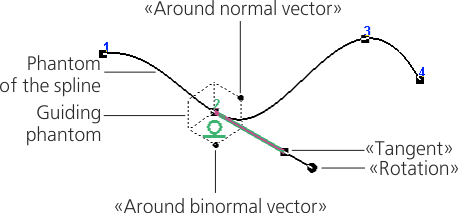
Spline shape control using a tangent vector
2.Set the length of the tangent vector. To do that, move the corresponding point of the phantom of the tangent vector in the graphic area or enter the length value in the Tangent Vector Length field.
To modify the curvature, set the Curvature Control toggle switch to position I (enabled). A phantom of the curvature radius will appear In the graphic area near the selected point (a segment connecting the selected spline point to the curvature center). There are two points at the end of the phantom. Using one of these points, you can set the radius (this point coincides with the curvature center), using the second one you can rotate the phantom.
|
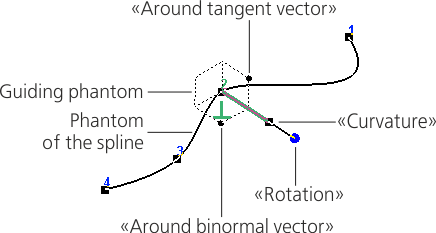
Guiding phantom when setting curvature
|
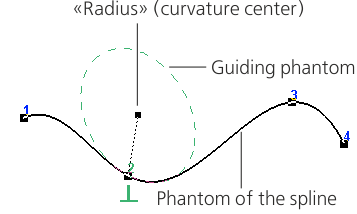
Guiding phantom when setting curvature radius
|
The Curvature Control switch is not available when enabled. smoothening. |

There are two ways to change the curvature of a spline in the selected point:
•Method 1 – define the direction of the normal vector and set the curvature value or the curvature radius (these values are mutually inverse),
•Method 2 — set the position of the center of curvature — the center of the tangent circle.
Method 1
1.Set the direction of the normal vector. To do this, use the methods discussed in Section Direction of the tangent vector and normal vector.
The position of the phantom of the curvature radius will change.
If it is required to change the direction of the curvature radius, press Change direction button to the right of its input field.
2.Set the curvature or the curvature radius.
You can enter curvature in the Curvature field, and the curvature radius in the Curvature Radius field. The radius can also be set manually by moving the point at the end of the radius curvature phantom.
After assigning the curvature (radius of curvature), the coordinates of the center of curvature and the size of the intersecting circle change.
Method 2
Set the position of the curvature center. You can use the following methods.
•Enter the coordinates of the curvature center in the Coordinates field of the Shape Management group of controls or move the corresponding point of the curvature radius phantom in the graphic area.
The position of the phantom of the curvature radius will change. The curvature and the curvature radius will change as well but the input fields of these settings will remain active. You can modify the value in any of these fields. The coordinates of the curvature center and the size of the curvature circle will change.
•Set the snap point of the curvature center. To do this, specify a point object or plot a point using the Plot Point With the help of Build a point  button.
The name of the selected object (or the point plotting method) will appear in the Snap Point field. The position of the phantom of the curvature radius will change. The values of the curvature and the curvature radius will change as well. The input fields of these parameters and the field of the curvature center coordinates will become inactive.
See Also
