|
Requirements to the sectioning objects of the trimming operation |
Scroll |
If during Performing trimming operation Objects of various types can be used as intersecting objects. Notes on selection of sectioning objects and the resulting truncation results are described below.
In some cases, you can select several sections of the same type, for example, several faces that make up a coherent set, or several curves lying on the surface being trimmed.
The selected sectioning objects should uniquely define the cutting boundary, i.e. completely intersect the trimmed surface.
In the case of a faceted trimmed surface, the trimming boundary is also considered fully defined if the sectioning object does not intersect all of it, but one or more faces, and the extreme points of the intersection line lie on the edges of these faces. In this case, the edges or parts of the edges are included in the trimming boundary. An example of such boundary is shown in the figure. Here, the trimmed object is a three-faced surface, and the sectioning object is a broken line whose segments lie on its edges.
|
|
a) |
b) |
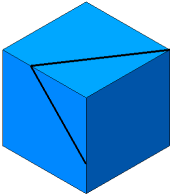
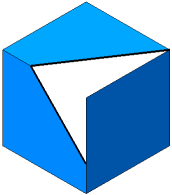
Example of trimming of a three–faced surface
a) surface to be trimmed and sectioning object. b) result of trimming
Coordinate plane or construction plane
Only a single coordinate or construction plane can be used for trimming.
Trimming is performed by the line of intersection of the plane and the surface being trimmed.
Face or coherent set of solid/surface faces
You can select a single face or multiple faces that form a coherent set.
Trimming occurs along the line of intersection of the selected face (set of faces) and the trimmed surface.
If you want the sectioning object to include all the faces of a solid or surface, specify that solid/surface. See below for notes on selecting a solid/surface.
When the sectioning object is a solid/surface, the name of this solid/surface is displayed in the Sectioning Object field.
Trimming occurs along the line of intersection of the trimmed surface with all faces of the selected solid/surface.
If, during further editing, the solid/surface will have new faces, the trimming line will change (provided that the operations that change the solid/surface are located in the Design Tree above the trimming operation).
Notes on selecting a solid/surface
•The following methods can be used for selecting a solid/surface:
•in the Model Design Tree displayed as a construction history, specify any of the operations that form the desired solid/surface,
•in the Model Design Tree displayed as a structure, specify the desired solid/surface,
•in the graphic area of the model, specify the desired solid/surface after enabling the relevant filter.
•If a solid/surface is selected, then with subsequent selection of one of the faces of this solid/surface, this face becomes selected, and the selection of the solid/surface is cancelled. In this case, in the Surface Faces field, instead of the name of the solid/surface, the name of the face appears. Conversely, if after face selection the containing solid/surface is specified, then this solid/surface will be selected instead of the face.
Curves lying on the trimmed surface
The following can be selected as the sectioning object:
•spatial curve,
•edge of a solid or surface,
•chain of curves or edges,
•one or several segments of a curve (for example, a broken line),
•several curves and curve segments not connected to each other.
Trimming is performed by the selected curves.
|
The use of curves with subordinate curve objects (projection curve, intersection curve, etc.) has specifics. Details... |

An isoparametric curve can be used as a sectioning object.
If the curve has already been created in the model, select it in a usual way.
If there is no curve in the model, create one without interrupting the trimming operation. To do this, press the Isoparametric Curve  button to the right of the Sectioning object field. The operation of creating an isoparametric curve on surfacewill be started.
If the trimmed surface consists of one face, it will be selected automatically; if it consists of several faces, then specify the face on which the curve should be located. After the curve is plotted, the system returns to the trimming process. The created curve appears in the Design tree and is automatically selected as a sectioning object.
|
If the field Sectioning Object contains previously selected curves, then the isoparametric curve will be added to the list of curves constituting the sectioning object. If the objects contained in the field are not curves, then you cannot add an isoparametric curve to the sectioning object. |
Sketch
Select the sketch in the Design Tree to make it the sectioning object. You can't use several sketches for a single trimming.
Trimming is made by the line of intersection of the surface being trimmed with the surface generated by extrusion of the sketch in a perpendicular direction to its plane.
A sketch may contain one contour, closed or open, or several closed contours. Contours should not have intersections and self-intersections. Example of trimming using a contour in a sketch is shown in the picture below.
|
|
|
a) |
b) |
c) |
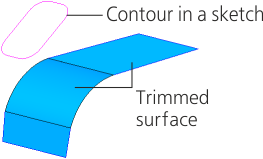
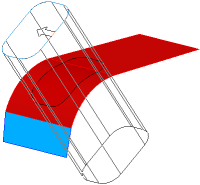
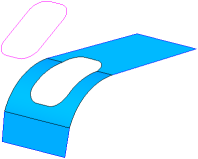
Example of trimming a surface using a contour in a sketch
a) surface to be trimmed and sectioning object; b) objects after selection; c) result of trimming
