|
Click copy |
Scroll |
Simple copying of selected objects is executed using the Click copy  command.

Step-by-step instructions
1.Select the objects to copy. To do this, in the Object selection subprocess, specify the required objects and click Create Object  .
.
In the Parameter Toolbar, the copying controls will appear. Names of the selected objects are displayed in the Objects field.
|
If the objects are specified before the Click copy command is invoked, then the subprocess of selecting objects is not launched. The system proceeds immediately to the copying command execution. If you need to select other objects for copying, click Objects link and specify the new objects in the subprocess of selecting objects. |

2.Set the copying parameters if necessary:
•in the Rotation Angle field, the rotation angle for the copy (the rotation center is the base point),
•in the Scale field, the scaling coefficient for the copy.
3.Set the copy position using one of the following methods:
•specify the base point for copying, and then set the new position for this point;
•set the offsets for the copy along the current coordinate system axes in the X-Shift and Y-Shift fields.
When you specify the position, the copy is created automatically.
|
|
a) |
b) |
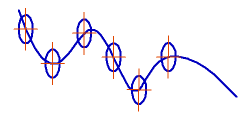

Copying objects
a) with keeping the rotation angle and scale, b) with changing the rotation angle and scale
|
To position the cursor precisely and to set the operation parameters you can use snaps and geometrical calculator. |

4.After creating the copy, the system waits for specifying the next place for copying. You can create a desired number of copies of the selected objects or select other objects and create their copies.
5.To complete operation of the command, click Finish  .
.
|
|
a) |
b) |
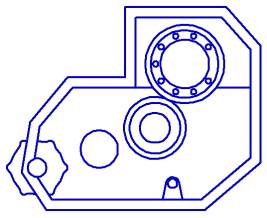

Arbitrary copying: a) the original image, b) the operation result
|
Sometimes it is more convenient just to copy the selected objects with mouse, without invoking a special command. Details... |
