|
Loading a print job |
Scroll |
To load a Print jobsTo print in preview mode, run the Load Print Job...  command.

After you run the command, a "Open File" dialog box will appear on the screen. Select a file and click Open.
|
If you've recently saved or loaded a print job, you'll be able to select this job in the list. This list is displayed here: •preview mode: File menu, •main window: File – Print Job menu. By default, this list contains nine recently saved or loaded print jobs. You can set up the number of jobs in the list (see section General settings). |

A dialog box "Add documents" will appear on the screen, which allows you to:
•add the job document sheets to the document sheets open for viewing,
•replace the document sheets open for viewing with the sheets from the job.
Description of the elements of the Dialog Add Document Sheets...
If you add sheets, the saved printability setting you've set using the Mode for selecting pages for printing command is ignored.
|
Current print settings will be changed according to the loaded job. |

|
To load a print job from the main window, run the File – Print job – Load Print Job... command or select a print job file in the list of jobs. In this case, the Add Documents dialog will not appear. The preview mode will be automatically enabled, and the sheets of the documents in the selected job will be displayed. |
If the current printing settings, printer settings or filter settings are different from those saved in the print job, then: if you choose to replace the sheets, the settings from the print job are used; if you choose to add sheets, the following message appears.
|
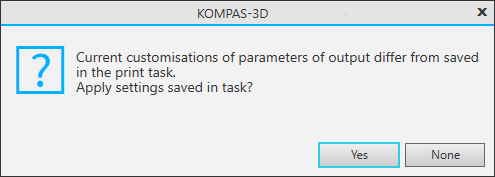
Message about difference between the current print settings and the parameters saved in the print job
Click Yes to replace current settings with the settings defined in the print job.
Click nan to use current settings.
After you load the print job in the preview mode, you can operate the software as usual: modify current settings, delete or move the document sheets, etc.
|
The changes are not saved to the print job file automatically. You can save current settings in the new job file or overwrite an existing file. |
