|
Changing the load mode when working with an assembly |
Scroll |
In this section:
The procedure for changing the assembly loading mode
The procedure for changing the component loading mode
Automatic changing the component loading mode to «Full»
The procedure for changing the assembly load mode
To apply a different assembly load mode while working with it, select it from the list of load modes in the load modes column of the Design tree. To do this, click the icon of the load mode in the row of the root element of the Tree and specify the required mode in the list that appears (see the figure).
The list contains the names of system and user load modes of the current assembly.
|
If the display of the column with load mode icons is disabled in the Model Design tree, call the Load mode command from the menu of the |


|
Selecting the assembly load mode in the Design tree |
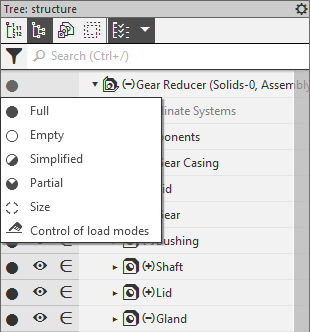
It is available to select the required load mode in Load modes process. To do this, start the process with the Control of load modes command  (called from the list of load modes in the row of the root element of the Tree, see the figure above) or with the command Load modes...
  (called from the context menu of the root element of the Tree). Click the mouse to the left of the required load mode name in the Load mode field.
If necessary, you can edit the existing load modes and create new ones in the Load modes process.
Procedure for changing the component load mode
Changing the load mode is available for a component at any nesting level, i.e. when working with an assembly, you can change the load mode of any of its components (part or subassembly), as well as components of its subassemblies.
To change the load mode of a component, click the load mode icon that corresponds to the component's subassembly. The list contains only system load modes.
|
The mode type icons are displayed in the Model Tree in a separate column. If the display of this column is disabled, call the Load mode command from the menu of the |
|
Selecting the component load mode in the Design tree |
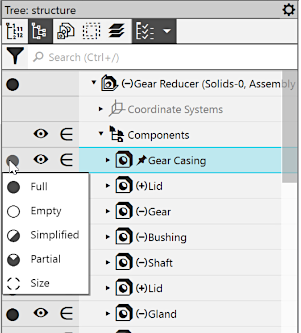
You can also change the component load mode using the context menu commands. To do this, open the Load modes submenu in the context menu of the component in the Design tree and call the command corresponding to the required mode. The menu contains commands of system load modes only.
If the component is a subassembly, you can change its load mode using the Load Load modes process. Start the process with the Load modes — Load modes... command from the context menu of the component in the Design tree and click with the mouse to the left of the name of the required load type in the Load mode field. This field contains both system and custom load modes (note that the custom load mode of a subassembly can be selected only in this way).
|
The load mode can be changed for several components of the same type, all objects of the Components section, all components of a subassembly, as well as for a group or a branch of components. To do this, select the components, section, group, etc. and call the command of the required loading mode from the context menu. |

When changing the load mode, pay attention to the following peculiarities.
•For components, it is possible to change the load mode either to the Full type or to a less detailed one in relation to the applied one (load modes in the order of decreasing detail — Full, Partial, Simplified, Size, Empty).
For example, if the loading type Empty or Size is selected for a component, it is impossible to load it with the Simplified or Partial type. To perform such loading, you must first load the component completely and then load it simplified (partially).
•Changing the load mode of one component insert (including a standard part) applies to all other inserts of that component in the current assembly.
•Changing the load mode of one instance of a component array applies to all other instances of that array and the original component.
•When you open a component part file in a separate tab, the load mode of that component in the assembly changes to Full. It is not possible to select another load mode, i.e. a component-detail cannot be unloaded if its source file is open.
•A subassembly is represented in the assembly as a reference to the corresponding file. Therefore, if both the assembly and subassembly files are open, any changes to theload modes made in the subassembly file (such as creating, editing, or applying a load mode) are passed to the assembly.
•Conversely, if the subassembly receives a different load mode in the assembly, it will automatically be applied to the subassembly file as well.
•The load modes of the subassembly components are the same in all simultaneously opened documents, i.e. if the subassembly file is opened in a separate tab and/or several assemblies containing the subassembly are opened, the load modes of the subassembly components are the same in all these documents. If the load type of a subassembly component in one of the documents changes, it changes in all other documents as well.
•Any of the loading types previously created in its source file can be applied to the subassembly if several subassemblies are selected to execute the command, the load mode is applied to all selected subassemblies that have a load mode with the given name in their files — in this case, each subassembly is loaded individually, which was set when this mode was created.
Automatically changing the component load mode to «Full»
An automatic change of an incomplete component load mode to Full occurs when the following actions are performed:
•For all incomplete load modes (Partial, Simplified, Empty, Size):
•source-file component change;
•transition to the component placement process;
•invoking of command of component editing in a separate window;
•moving a component within the assembly structure (if a component is moved to a subassembly with incomplete loading, its load mode also changes to Full);
•invoking of command of component editing «in place» (for modes Empty and Size the command is unavailable);
•shift and rotate of a component (for modes Empty and Size the actions are unavailable).
•Additionally, for the load modes Simplified, Empty, Size:
•enabling/disabling of component fixation;
•call for command Deform for component;
•call for command Assembly components explosion mode — when initially setting up the parameters, the spacing changes to Full and Siplified modes, Empty and Size, later when switching on/off the diversity mode — only Empty and Size).
•Additionally, for the load modes Simplified:
•application to the component of the operation in the assembly (creating a round hole on the face of the component, rounding edges of the component, etc.), as well as editing this operation;
•using the component to build another object in the assembly (specifying the component face for sketching or thicknessing, etc.), as well as editing this object;
•setting a mating component on the object, as well as editing this mating.
In the future, it is possible to apply another load mode to the automatically loaded component. However, note that any incomplete load mode other than Partial is replaced by Full when the assembly is rebuilt if:
•component is a source object or an instance of a component array;
•an operation resulting in the creation or deletion of faces and edges (Chamfer, Hole, Splitting surface, Delete faces, etc.) is applied to the component.etc.).
See also
