|
Editing dimensions and designations |
Scroll |
Dimensions and designations in model can be changed in two ways — with the start of the process of editing and without starting this process. General information about methods for editing objects...
Editing by means of characteristic points and elements of the Parameter Panel is available (for more details, see below).
When editing a designation, it is possible to move its plane in parallel to itself. Details...
Change of dimensions and designations without starting the edit process
To change size or designation, select it in the graphic area or in the Model design tree.
You can edit the parameters of a selected object by means of elements of the Parameter Panels, as well as change the configuration of an object using its characteristic points.
Each object has several characteristic points. Their number and placement depends on the object type, and for dimensions — also on the method of placement of the dimension text (see the Figure).
Defining points can be moved with a mouse within the plane of a dimension or designation. For example, thus it is possible to move the dimensional line or a dimension text, to rotate the landing of the leader, to change the place to which the branch of leader points, etc.
|
|
a) |
b) |
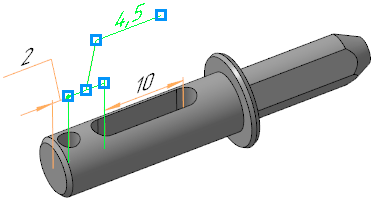

Display of characteristic points of the selected object:
a) linear dimension, b) designation of shape tolerance
You can edit a label of designation or a dimension text of dimension labeled manually. To do this, use the Subprocess of text input. You can start the subprocess by one of the ways.
•Select the dimension or designation and move the cursor so that it is not above the selected object. Then click the key shortcut <Shift> + <Enter>.
•Double-click the dimension text of the dimension labeled manually or the designation label.
It is possible to change the value of the derivative dimension and also the associative dimension of sketch or operation. For this purpose, double-click the dimension text. On the screen, there will appear the Set dimension value dialog. In the dialog, depending on dimension type, it is possible to change a variable name, the value of dimension, and other parameters. On change of the value of dimension, also the element to which the dimension was labeled will change. More details about changing the dimension value...
Change of dimensions and designations by starting the process of editing
To change a dimension or designation, you can start the editing process. The following actions are available in this process.
•Changing parameters of a dimension/designation using the Parameter Panels.
Upon switching to the process of editing, the command with which the object was created is started. Change of parameters is performed the same way as their setting while labeling a dimension/designation.
•Changing a dimension/designation text in the Subprocess of text input. This subprocess is started by mouse-click in the Text field of the Parameter Panel or a text box in the label field in the graphic field, and also by pressing any of the alphanumeric keys on the keyboard. When editing labels, the same operations are performed as those during their creation. For more details on working with a dimension text, see section Dimension text, with the table of geometric tolerance of form — see section Generation of a tolerance table, for editing the remaining labels, only the tools of the text input subprocess are used.
•Editing using characteristic points of the configuration of a dimension or designation (except designations of the datum and surface finish).
Defining points of dimension/designation in the editing mode differ from those that are displayed upon simple selection of dimension/designation (without starting the editing process). Their quantity and placement depends on the object type, and for the dimension — also on the method of placement of the dimension text.
|
|
a) |
b) |

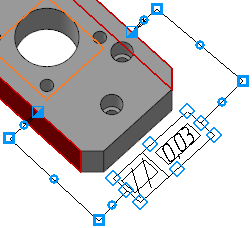
Display of characteristic points in the editing mode:
a) linear dimension, b) designation of shape tolerance
Since defining points are used to perform different actions, they have a different shape.
•A point  allows you to reposition the initial start point of the designation or the dimension line of the dimension, and in the case of a radial/diametral dimension, to rotate the dimension. Besides, by means of this point you can change the type of arrow at the end of the dimensional line / branch — the necessary type of arrow is selected from the context menu at its end (where the point is displayed).
•Point  allows you to move the dimension text when it is placed manually, and in the case of a radial/diametrical dimension — to rotate the dimension. If the dimension text is placed on the landing, the point is used for moving the landing. In the designation (except geometric tolerance designation), using this point you can move the landing and add a branch.
•The point  allows you to rotate the landing. It is displayed on the screen when editing designations with the leader line and the dimensions with a dimension text on the landing. In the latter case, the point is also displayed at the start of the leader line and is used for its movement.
If a leader line branch has bends, point is displayed at the bend location and allows it to be moved or deleted.
•The point  allows creating a bend on the designation branch.
•The point  allows you to add a branch to the form tolerance designation and move the tolerance table.
•The point  allows the plane of designation to be moved parallel to itself (the phantom plane and characteristic point are displayed if the plane has not been fixed). Details...
See Also
