|
Configuration component setting |
Scroll |
When you select a configuration component in the list of the Configurator, the setup controls for this component and information about it will appear in the right-hand part of the dialog. The set of elements depends on the component type. The figures show examples of the dialog contents for add-ons and utilities. Configuration of the component parameters is described below.
|
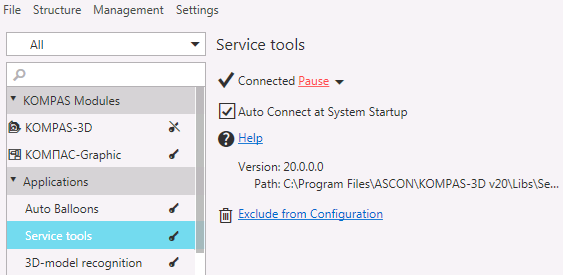
Add-on setting elements
|
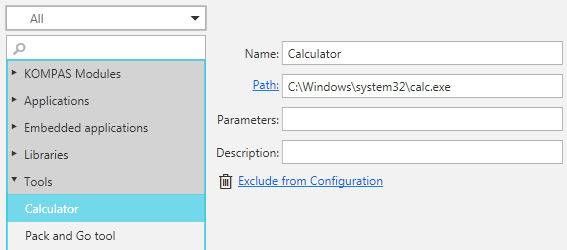
Utility setting elements
Connecting, disconnecting and suspending the work of components
Connecting, disconnecting and suspending the work of components are available for the KOMPAS-3D module and add-ons. These operations are performed using the element shown in the figure.
|
|
a) |
b) |


Element for status selection:
a) for module KOMPAS-3D, b) for application
If a component is connected, its license is occupied  .
.
If a component is disconnected or suspended, its license is free  .
.
•The %PRODUCT_NAME% module can have the Connected or Disconnected status. In the first case, the configurator shows an icon  in the module row, while in the second case – an icon
  .
.
To connect/disconnect a module, click the link in the right-hand part of the element.
•The add-on can have the Connected, Disconnected or Suspended status. If the add-on is connected, the configurator displays an icon . In other cases the icons are not displayed.
To connect/disconnect/pause the add-on, click the link in the right-hand part of the element.
If the add-on has Connected or Paused status, then an icon  is displayed to the right of the link. Clicking this icon brings up a menu with commands that control the state of the add-on. You can invoke the required command from this menu.
The application automatically transitions to the Suspended state if it fails to connect, for example, due to network interruptions or the absence of a free license. In this case, the relevant message will be displayed, and the line with the add-on name in the Configurator is marked with  .
.
Commands of the connected component can be called, while for the disconnected component cannot be called.
If a component is paused, its commands will not be displayed in the Main menu. However, commands may appear in the Toolbar Panel of the window, if they were added during setup. You can run the command of a suspended add-on from the Toolbar Panel. In this case, the add-on will automatically change its status to Connected.
|
The suspended application command can also be invoked using a keyboard shortcut if assigned when configuring keyboard shortcuts. |

|
Adding add-on commands to toolbars and configuration of keyboard shortcuts can be done not only when the add-on is connected, but also when the add-on is suspended. The commands remain available in the interface setting mode and in the Keyboard Settings dialog. |

Please note the following when disconnecting the add-on.
•Disconnecting an add-on will result in the loss of all interface settings made for it. If the add-on is suspended, the settings will be saved.
•Disconnecting the add-on does not remove it from the configuration. For deletion, use the link Exclude from Configuration.
Automatic license acquisition for a KOMPAS-3D module
If a module KOMPAS-3D is selected in the Configurator list, the set of settings elements includes the Obtain license automatically option. The option controls automatic capture of license for working with 3D design module after launching KOMPAS-3D.
•If the option is enabled, the license is captured automatically, provided that the hardware protection key has available licenses.
•If the option is disabled, you'll have to manually get the license to work with 3D models. You can do it using the Attach link in the Configurator or using the Obtain KOMPAS-3D License.
You can also automatically get the license for 3D modeling in the Configurator using the Setting — Automatically obtain license to work with KOMPAS-3D command or the same-named option in the System Management dialog.
Automatic connect add-ons at system startup
If an add-on is selected in the Configurator list, the set of settings elements includes the option Auto Connect at System Startup. This controls automatic connection of the application to the KOMPAS-3D immediately after system startup.
•If the option is enabled, the add-on will be connected automatically.
•If the option is disabled, then for connecting, you need to click Attach in the Configurator.
This setting is automatically enabled for all the add-ons manually added to a configuration.
The last status of an add-on (connected/disconnected) is not preserved when you close the software.
Excluding components from configuration
You can exclude libraries, add-ons, and tools from the configuration.
To exclude the selected component click the link Exclude from configuration  . The component will be deleted from the list in the Configurator. The file of the component remains intact in its folder.
To add a component into the configuration, you use the Structure menu commands in the Configurator dialog box.
Selecting a library for inserting standard texts
To determine which of the libraries will automatically activate when invoking the command for insertion of a standard text, select this library in the list of the Configurator and enable the option Use library to insert standard texts.
This option can be enabled only for one library, by default it is Kompas_tdp.kle. To launch another library for insertion of standard texts, enable the option for it.
Insertion of standard texts from the library is possible is it contains the elements in the .kdw format (KOMPAS text documents) or in the .txt format.
Configuring the information on tools
If a tool is selected in the Configurator list, then the set of settings elements will contain the fields with the relevant information. These fields are editable.
•Name — the field contains the name of the utility and allows you to change it.
•Path — the field contains the path to the utility file. To change the path, click the field name and specify the utility file in the dialog that appears. You can also change the field contents manually.
•Parameters — a field to enter the command launching parameters.
•Description — the field to enter arbitrary text.
