|
Arc centerline |
Scroll |
To create an arc centerline shaped as a circular arc, use the Arc centerline  command .

Step-by-step instructions
1.Configure parameters of the arc centerline. This is done in the same way as when creating the center mark, with the only difference: when working with the arc centerline, there is a switch Identical juts on the Parameters Panel.
•If the toggle switch is set to position I (enabled), then the extensions beyond the endpoints of the arc centerline are of equal length, which is specified in the Jut field.
•If the toggle switch is set to position 0 (disabled), then the lengths of the protrusions are specified in the fields Jut 1 and Jut 2. If required, you can swap these values using the Swap  button to the right of the fields.
For details on the setup of Parameters...
2.Set the center of the arc.
3.Set the starting point of the arc in one of the following ways:
•indicate the point with the mouse,
•Enter the initial angle and diameter/radius of the arc into the respective fields on the Parameter Panel (to set the diameter/radius, in the Arc Parameter group, press the required button — Diameter  or Radius
  ).
).
4.If required, change the arc direction (you can build it both clockwise and counter-clockwise). To change the current construction direction, press the Arc Direction  button on the Parameter Panel.
5.Set the end point of the arc. This can be done in two ways:
•indicate the point with the mouse,
•enter the end angle of the arc in the appropriate field.
An arc centerline will be created in the document, extending beyond the specified points.
6.To complete operation of the command, click Finish button  .
.
|
To precisely set the position of the points on the arc centerline, you can use Snaps and geometrical calculator. |

See the example of building an arc centerline on the figure below. The radius, center point of the arc 1, starting angle — point 2, and ending angle of the arc — point 3 are specified. The points are located in the order they're indicated.
|
|
a) |
b) |
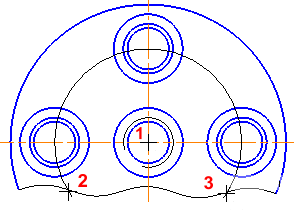
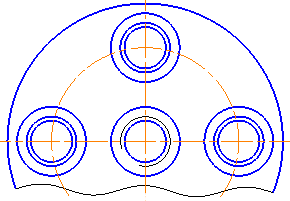
Building an arc centerline
a) points denoting center, starting and the ending arc angles, b) design result
|
Note that as a result of executing the Arc center line command, the object arc centerline is obtained, rather than an arc with the style Centerline. Work with objects of this type does not differ from work with objects of other types. For example, using the Select by properties... You can select in the document all the arc centerlines. |
