|
Shift |
Scroll |
Commands for shifting can be applied to any objects of a drawing or a fragment.
In KOMPAS-3D this can be done:
To position the cursor precisely and to set the operation parameters you can use Snaps and geometrical calculator.
|
Shift commands are grouped. While executing a group command, you can switch to execution of another one using buttons of the Parameter Toolbar header. If there are already selected objects in the current shift command, they remain selected after proceeding to another shift command. |

|
Sometimes you need to shift only part of the geometric objects composing the image, and to rearrange the rest appropriately. You can do such editing using the Transformation by Shift. |

Offsetting the selected objects in arbitrary direction is done using the Move by Coordinates  .
.

Step-by-step instructions
1.Select the objects to shift. To do this, specify the required objects in the Object selection Select the required objects and click the Create Object  button. In the Parameter Toolbar, the shift setting controls will appear.
|
If the objects are specified before the Move by Coordinates command is invoked, then the subprocess of selecting objects is not launched. The system proceeds immediately to the shifting command execution. |
Names of the selected objects are displayed in the Objects field.
2.Set the new position for the selected objects using one of the following methods:
•specify the base point for the shift and set its new position,
•enter the values for offsetting objects along the current coordinate system axes in the X–axis Shift and Y–axis Shift fields.
The selected objects will shift automatically.
3.After shifting the objects remain selected. If you need to shift other objects, click the Objects link and specify the new objects for the shift in Subprocess of selecting objects.
4.To complete operation of the command, click Finish  .
.
|
|
a) |
b) |
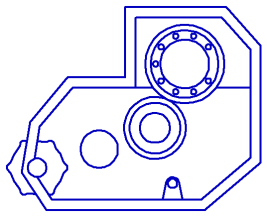
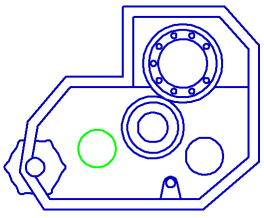
Arbitrary shifting: a) the original image, b) the operation result
|
Sometimes it is more convenient to drag and drop the selected objects using the mouse without using the shift command. This feature is described in details in the Moving objects using the mouse. |
Additional options when performing a shift...
You can offset the selected objects to a certain distance in the specified direction using the Move by Angle and Distance command  .
.
Step-by-step instructions
1.Select the objects to shift. To do this, specify the required objects in the Object selection Select the required objects and click the Create Object button to continue. In the Parameter Toolbar, the shift setting controls will appear.
|
If the objects are specified before the Move By Angle and Distance command, then the subprocess of selecting objects is not launched. The system proceeds immediately to the shifting command execution. |
Names of the selected objects are displayed in the Objects field.
2.Set the shift value and the angle between X–axis of the current coordinate system and the straight line along which the objects will be shifted. To do this, enter the appropriate values in the Distance and Shift Anglefields.
The graphic area will display a phantom of the offset objects.
3.To complete the operation, click the Create Object .
4.To complete operation of the command, click Finish .
|
|
a) |
b) |
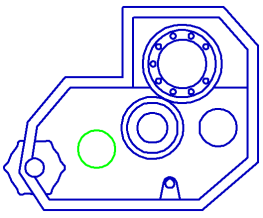
Shift by Angle and Distance
a) original image, b) shifting the hole to 22 mm at 10° angle to X axis
