|
Building planes |
Scroll |
In KOMPAS-3D you can construct:
•plane at an angle to another plane,
•plane through edge and point,
•plane though point parallel to another plane,
•plane through point perpendicular to edge,
•plane tangent to face at point,
•plane through edge parallel/perpendicular to another edge,
•plane through edge parallel/perpendicular to face,
|
Plane creation commands are grouped together. While executing a group command, you can switch to execution of another one using buttons of the Parameter Toolbar header. If an object to be built is already selected in the current command, it remains selected when you switch to another command (if an object of the same type is required for building). |

An auxiliary plane located at a specified distance from the specified flat object is built using the Offset Plane  command. This command also enables building multiple offset planes in a single run.

Step-by-step instructions
1.Specify a flat object, relative to which the offset of the new plane is specified. The name of the selected object is displayed in the Base Plane field on the Parameters toolbar.
The phantom of the plane being created will appear in the graphics area.
2.In Distance field enter the distance from the flat object to the plane to be created.
3.Set the direction of the shift using the Change direction  button to the right of the Distance field. After pressing the button, the arrow on the icon will change to the opposite.
4.If required, you can simultaneously build several planes which will be offset relative to each other at the specified distance. To do this, enter the number of planes in the Number. Phantoms of planes will appear in the graphic area.
|
Note that if multiple offset planes are created simultaneously, each of them will be displayed in the Model Tree as a separate object. You can edit each plane separately, independently from the others. |
5.To complete the build, click Create object  .
.
6.To complete operation of the command, click the Finish  button.
|
|
a) |
b) |
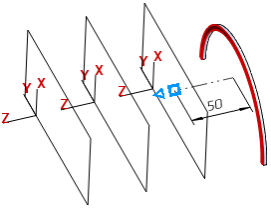
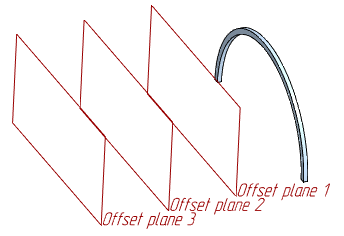
Example of building multiple offset planes
a) setting a base plane and a distance, b) operation result
Additional features when building...
A construction plane passing through the selected three point objects is built using the Plane through three points  option.
Step-by-step instructions
Sequentially select three point objects.
The plane will be created automatically.
If the model does not have the desired objects, build them by clicking the Build Point  to the right of the field Point 1 (Point 2, Point 3) on the Parameters Panel. Will start Subprocess of plotting a point.
To complete operation of the command, click the Finish button.
Additional features when building...
A plane at an angle to another plane
A construction plane passing through a straight-line object at the specified angle to a flat object is built using the Plane at Angle  command. This command also enables building multiple planes at the specified angle to each other and passing through the same straight-line object in a single run.
Step-by-step instructions
1.Specify a flat object at an angle to which the plane should pass.
Specify the straight-line object through which the plane should pass.
|
The straight-line object must be parallel to the flat object or belong to it. |
The names of the selected objects will appear in the fields Base Plane and Axis on the Parameters toolbar.
The phantom of the plane being created will appear in the graphics area.
If the desired straight-line object is not in the model, build the axis by pressing the Build the axis  button to the right of the Axis field. Will start subprocess of building an axis.
2.Set the angle between the flat object and the plane to be created in the Angle field, or select a value from the drop-down list.
3.Specify the direction to which the indicated angle should be put aside from the flat object, using Change Direction button to the right of the Angle field. After pressing the button, the arrow on the icon will change to the opposite.
4.If required, you can simultaneously build multiple planes located at the specified angle to each other and passing through the selected straight-line object. To do this, enter the number of planes in the Number. Phantoms of planes will appear in the graphic area.
|
Note that if multiple planes are created simultaneously at a set angle, each of them will be displayed in the Model Tree as a separate object. You can edit each plane separately, independently from the others. |
5.To finish building the plane, click the Create object button .
6.To complete operation of the command, click Finish .
|
|
a) |
b) |
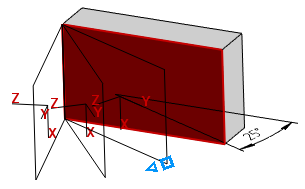
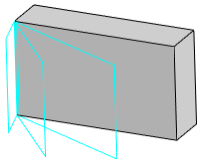
Example of building multiple planes at a set angle
a) setting a base plane and an angle, b) operation result
Additional features when building...
A construction plane normal to the revolution surface (except for a sphere) is built using the Normal Plane  .
.
Step-by-step instructions
1.Specify the rotation surface. Its name will appear in the Revolution Surface field on the Parameter Panel.
A phantom of the plane being created will appear in the graphics area. By default, the plane passes through the axis of the surface of revolution and the point of this surface with zero values parameters U and V.
2.If necessary, specify the position of the plane relative to the existing flat object. To do this, specify a flat object parallel to the axis of rotation. The name of the selected object will appear in the Base Plane field on the Parameter Panel.
The position of the phantom will change: the plane will pass through the axis of the surface of rotation parallel to the specified object.
3.Set the rotation angle of the plane in the field Angle or select a value from the drop-down list. The rotation angle is measured from the current position of the plane.
4.Specify the angle measurement direction using the Change Direction button located to the right of the Angle field. After pressing the button, the arrow on the icon will change to the opposite.
5.To finish building the plane, click the Create object button.
6.To complete operation of the command, click the Finish button.
Additional features when building...
A construction plane tangent to the cylindrical or conical face of the model is built using the Tangent Plane  command.
Step-by-step instructions
1.Specify a cylindrical / conical face and a flat object passing through the axis of this face. The name of the selected object will appear in the fields Revolution Surface and Base plane on the Parameter Panel.
A phantom of the plane being created appears in the graphics area: it passes through the line of intersection between the cylindrical / conical face and the flat object perpendicular to the latter.
2.Specify which side of the cylindrical / conical face the tangent plane should be constructed. To do this, set the toggle switch to the desired position Position 1/Position 2.
3.Set the rotation angle of the plane in the field Angle or select a value from the drop-down list. The rotation angle is measured from the current position of the plane.
4.To finish building the plane, click the Create object button.
5.To complete operation of the command, click Finish .
Additional features when building...
A construction plane passing through the selected straight-line and point objects is built using the Plane through edge and point  .
.
Step-by-step instructions
Specify point and straight-line objects.
If the desired objects are not in the model, construct them.
•To create a point, click Create a point to the right of the field Point. Will start Process of plotting a point.
•To create an axis, click the Build an axis button to the right of the field Edge. Will start sub-process of building an axis.
A plane passing through the specified objects will be created automatically.
To complete operation of the command, click the Finish button.
Additional features when building...
A construction plane passing through the specified flat curve is built using the Plane through flat curve  command.
Step-by-step instructions
Specify the curve through which the new plane should pass.
As a curve can be used:
•sketch line,
•spline (or broken line) with three vertices,
•arc;
•conical curve,
•other flat curves: an edge having the shape of a circle, ellipse, etc.
After specifying the curve, the plane will be created automatically.
To complete operation of the command, click Finish .
Additional features when building...
Plane through Point Parallel to Another Plane
A construction plane passing through the point object parallel to the plane object is built using the Plane through point parallel to another plane  .
.
Step-by-step instructions
Specify a flat object, parallel to which the plane must pass.
Specify the point object, through which the plane must pass.
The plane will be created automatically.
If the desired point object is not in the model, build a point by clicking the Build Point button to the right of the field Point on the Parameters Panel. Will start Subprocess of plotting a point.
To complete the plane building command, click Finish .
Additional features when building...
Plane through Point Perpendicular to Edge
A construction plane passing through a point object perpendicular to the curve (edge, sketch line, spline, etc.) is built using the Plane through point perpendicular to edge  .
.
Step-by-step instructions
Specify a point object and a curve.
The plane will be created automatically.
|
A point object does not have to belong to a curve. |
If the required objects do not exist in the model, build them without exiting the command.
•To create a vector, click the Construct Vector  button to the right of the Edge field on the Parameter Panel. Will start subprocess of vector construction.
•To create a point, click Create point to the right of the Point field on the Parameter Panel. Will start Subprocess of plotting a point.
To complete operation of the command, click Finish .
Additional features when building...
The plane tangent to a face at a point
A construction plane tangent to the selected face at the set point is built using the The plane tangent to a face at a point  .
.
Step-by-step instructions
1.Specify the face to which the plane should go. The name of the selected object will appear in the field Surface on the Parameter Panel.
The selected face will display a phantom of its theoretical surface The phantom of the new plane is displayed as a rectangle, and the grid of isoparametric curves U and V. By default, the plane passes through the point of specifying the face.
2.Set the position of the tangent plane. To do this, specify the position of the point through which the plane will pass, in one of the ways:
•Set the offset points along the isoparametric curves U and V. Values for the U and V parameters are entered into the field UV parameters, % on the Parameters panel.
•specify the point object with which the tangent plane will be associated. Thanks to this connection, the plane will follow the object when its position changes.
The name of the selected object appears in the field Snap point.
|
To specify the position of the plane, point objects can be specified as belonging to the selected face, as well as not belonging to it, but projecting onto this face. The position of the created plane in this case is determined by the projection. |
If the desired point object is not in the model, build a point by clicking the Build Point button to the right of the field Snap Point on the Parameters Panel. Will start Subprocess of plotting a point.
3.To finish building the plane, click the Create object button.
4.To complete operation of the command, click Finish .
Additional features when building...
Plane through Edge
Parallel/Perpendicular to Other Edge
A construction plane passing through the specified straight-line object parallel or perpendicular to another straight-line object is built using the Plane through edge parallel/perpendicular to another edge  command.
Step-by-step instructions
1.Specify the straight-line object through which the plane should pass. Its name will appear in the Object 1 field on the Parameters toolbar.
2.Select position of the plane – parallel or perpendicular to another rectangular object. To do this, press the relevant button in the Plane position group.
 Parallel to edge
 Perpendicular to edge
3.Specify a straight-line object parallel (or perpendicular) to which the plane should pass.
The plane will be created automatically.
If necessary, you can specify the first selected object as the edge parallel or perpendicular to which the new plane will pass. To do this, click Swap  to the right of the Object 1 field until you select the second object. After clicking the button, the name of the selected object will appear in the field Object 2, and the field Object 1 will be cleared.
4.To complete operation of the command, click Finish .
Additional features when building...
Plane through Edge
Parallel/Perpendicular to Face
A construction plane passing through the selected straight-line object parallel or perpendicular to another flat object is built using the Plane through Edge Parallel/Perpendicular to Face  .
.
Step-by-step instructions
Specify the straight-line object through which the plane should pass.
Select the plane position — parallel or perpendicular to another flat object. To do this, press the relevant button in the Plane position group.
 Parallel to face
 Perpendicular to face
Specify a plane object, parallel (or perpendicular) to which the plane should pass.
The plane will be created automatically.
To complete operation of the command, click Finish .
Additional features when building...
A bisector plane of a dihedral angle is built using the Median Plane  command.
Dihedral angle – part of the space bounded by two half-planes, the boundary of each of which is their common straight line. These half-planes are called faces of the dihedral angle, and the straight line – edge of the dihedral angle. The angle between the lines of suppression of the faces of a dihedral angle with a plane perpendicular to the edge of the dihedral angle is called linear angle of the dihedral angle.
Bisecting plane of the dihedral angle is the plane passing through the bisector of the linear angle and the edge of this dihedral angle.
The dihedral angle for constructing the middle plane can be specified:
•faces – for this you need to specify two flat objects,
•linear angle – for this you need to specify two straight line objects,
•the face and side of the linear angle – for this you need to specify flat and rectilinear objects.
|
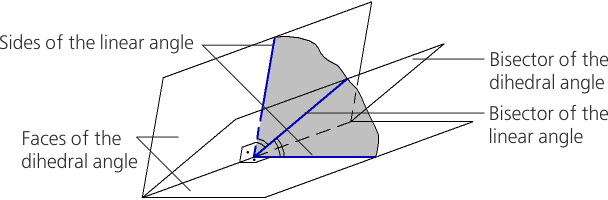
Dihedral angle and its bisector plane
Step-by-step instructions
Specify the sides of the dihedral angle to build a mid-plane.
A middle plane will automatically be created, the position of which relative to the specified objects depends on the position of the Position toggle switch.
•Position 1 — a bisector plane is constructed
•Position 2 — the plane is constructed perpendicular to the bisector plane and passing through the edge of the dihedral angle.
|
The position of the bisector plane must be specified before specifying the second side of the dihedral angle. |
In the particular case, if the specified objects are parallel, the constructive is performed as follows (regardless of the position of the toggle switch).
•If the objects are straight, then the middle plane is built perpendicular to the plane passing through them at an equal distance from them.
•If objects are planar, and also, if one is planar and the second is straight-line, then the median plane is built parallel to them at an equal distance from them.
To complete operation of the command, click the Complete button.
Additional features when building...
•The distance and angle values can be changed in the graphical area of the model – using defining points.
•You can set linear and angular parameters using the geometrical calculator.
•You may assign tolerances, specified in linear or angular units, to operation parameter values. To do this, you should call the Tolerance command located in the menu of the required parameter, or click the  icon displayed in the parameter field (the icon is displayed if a tolerance is assigned to the parameter value). More details on assigning tolerance...
