|
Setting properties for constituents in versions |
Scroll |
In this section:
Setting properties for separate constituent parts
Linking with position/component and working with documents
Features of constituent parts with no visual representation
Setting properties for separate constituent parts
Properties of separate constituent parts included in independent product configurations can be set in a common manner. All changes to properties made in the version are transferred to its dependent versions (if any).
|
For any constituent part in a dependent version, you can Cancel link with the original version. Such components retain the property values during the editing of the original version. |

Editing properties of a constituent part in a dependent version is also available, but there is an exception: it is impossible to change the values of the following properties:
•Material,
•Mass,
•Density,
•BOM section.
|
Properties set for a component in the dependent version are preserved until the next editing of the properties of this component in the initial version. After editing, the dependent version again acquires properties from the original version (if the link between them is not disabled). |
Group editing of properties is possible, i.e., simultaneous modification of properties for all the same constituent parts in all versions. To set this property, you need to configure it not in the rows of the group, but in the group row. The specified property values will be assigned to all the constituent parts included in the group.
The properties of the group in version mode are set in the same way as the properties of the group in the normal display mode of the Product Components Toolbar. In the standard mode, a group is several identical components in one version of the product, while in the version mode, it is identical components across all versions (each version may contain one or several of them). A distinctive feature of a group in version mode is that the Mass property is governed not by the Sum rule, but by the Coincidence rule. That is, the group row does not display the total mass of identical parts, but the mass of a single part, if they are identical, or the row “Set differently”, if they are different.
For more details on displaying and editing properties of a group of composite parts, see section Batch setting of properties.
The quantity for an individual component can be entered only in the cell of the column that corresponds to the version containing that component. The remaining cells for entering the quantity in the row of the component part are not available, see the figure.
In the group row, it is possible to enter the quantity into the cell of any version. Wherein:
•If the version includes one component, then the entered quantity is transferred to the cell of this component.
•If the version includes several composite parts, then the cell background turns yellow. This means that it displays a value different from the sum of the numbers in the cells of the group. To restore the summation, call the Calculated Value command from the cell shortcut menu (see the figure).
|
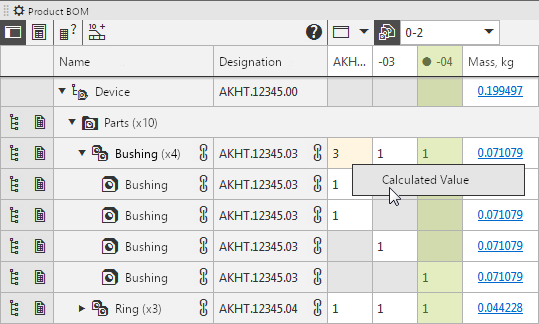
If quantities for any constituent part are removed in all versions, then this constituent part is considered to belong to all versions.
|
In the group row, you can enter the quantity for the component, which is actually not present in this version. The new component in this version will not appear — its presence as a component part will be reflected only in the product BOM. A cell with a manually entered value will have a yellow background; invoking the Calculated value command will clear it, i.e., remove the constituent part from version. However, it is not recommended for such "dummy" components to be included in implementations. The preferred method of data entry about them is — Creating constituent parts with no visual representation. |
 from the version by switching to normal mode of the Product Structure Panel.
Inserting link as a property value The transformation is possible only for composite parts that are included in the current version.
In the group cell, the link is displayed as plain text, i.e. in black color and without underlining. Editing this text is available, but as a result, the entered text will replace the corresponding references in all rows of the group. Inserting a reference into a grouped cell is not possible.
|
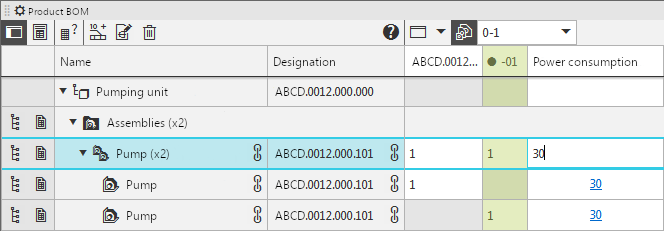
Hyperlink Display in the group row
Linking with position/component and working with documents
Binding the constituent part to the position/component It is only available if this component belongs to the current version.
Working with Documents in progress using the common way — for both individual components and groups.
Features of constituent parts with no visual representation
All the techniques described above pertain to composite parts, which correspond to model objects — components or solids. Besides, the model may contain constituent parts with no visual representation. Editing properties of such composite parts is performed using the common.
Since the model lacks components or solids corresponding to a constituent part, all columns for quantity entry are available, i.e., the quantity for this constituent part can be specified for several or all product versions in a single row.
Inserting link as a property value for a constituent part without visual representation possible, if the constituent part is included in the current version. A constituent part without visual representation is considered included in the version if the quantity of this constituent part for this version is not empty.
Linking to Position/Component For a constituent part with no visual representation, it is available regardless of which version is current.
When creating a new version of the product, its components are copied without visual representation, if they were in the original version, i.e. the total number of such components increases. Then you can:
•Remove the "extra" constituent parts without visual representation, leaving one for which all properties and quantities will be specified (see Fig. A).
•Leave identical constituent parts without visual representation - for example, if they need to have different properties in different versions, see figure b.
a) |
b) |
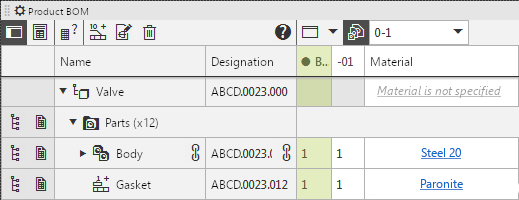
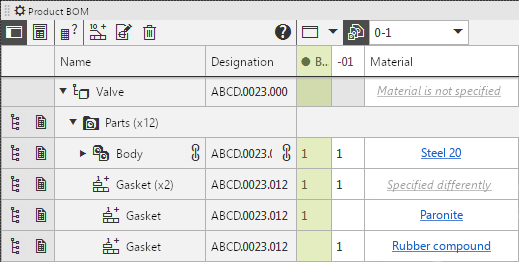
A constituent part with no visual representation — Gasket:
a) common for both versions, b) separate for each version
