|
Curvature check |
Scroll |
Checking of curvature allows to find points with a minimum curvature radius (maximum curvature value) on a curve or a surface and to determine the curvature/curvature radius in an arbitrary point. Points determined during checking of curvature are displayed in the model with vectors of normals and main directions.
|
|
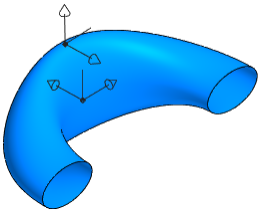
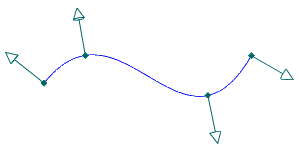
Points for checking curvature in a model
More details on checking curve curvature...
More details on checking surface curvature...
To check curvature, use the Check Curvature command  .
.

Step-by-step instructions
1.In the graphic area or in the Design tree, specify the object to check curvature (the object can be specified before calling the command).

The name of the curve or face is displayed in the Objects field on the Parameters Panel.
2.Define the points with maximum curvature value using the switch Extremes of curvature. By default, the toggle switch is set to I (Enabled). If the object for checking curvature is specified, the absolute curvature maximum point is immediately displayed on the phantom in the graphic area. More details on checking maximum curvature...
3.If required, find points of local curvature extremes, inflection points and curvature in extreme points on the curve. More details on checking the curve curvature in special points...
4.If required, create a point in the location of the curvature extreme or of another special point. More details about creating a point in the place of curvature checking...
5.You can determine curvature in any point of a curve or surface. To do this, set the Curvature at Point toggle switch to I (enabled) and specify the point. More details on checking curvature at an arbitrary point...
6.You can visually assess the surface curvature using a curvature map. To do this, set the Curvature Map toggle switch to position I (enabled). More details on the Curvature Map...
7.If necessary, change the accuracy of the display of measurement results and the unit of length measurement using elements of the Information Format section, described in the chapter. Measurement parameters.
8.If necessary, change the display color of vectors and the style of points using the Displaying group of elements in the Properties section.
9.To save the checking (both checking objects and parameters will be saved), press the Save  button in the header of the Parameters Panel. The name of the check can be configured in the Properties section.
|
When the shape of a curve or plane changes, the curvature checking results change automatically. |
The points in which the curvature was checked will be displayed in the graphic area, and an object will appear with the relevant icon in the Model tree under the section Diagnostics .
The command is not completed after the checking parameters are saved. You can edit them if needed. The changes will be automatically displayed in the graphic area and on the Parameter Toolbar.
10.To complete the curvature check command, click Finish  button in the Parameter Toolbar header.
