|
Fill creation |
Scroll |
To fill one or several areas in the graphic document with a color, use the Fill command  .
.

Step-by-step instructions
1.Set the fill boundaries. To do this, specify a point inside the area that you want to fill. The system will automatically determine the possible boundaries within which the point is indicated. The name of the border appears in the field Borders in the Parameter Panel. A phantom fill appears inside the outline.
This method can be used to set a region both in the current view and in a view that is not current. In the latter case, the view automatically becomes current.
The fill area may consist of one or more closed circuits, including those not connected to each other. All the contours should belong to the same view.
|
There are also other ways of defining fill borders: specifying boundary objects, creating a temporary broken line, building contour. More details on additional methods for setting boundaries... |

2.Select the Fill Type, by pressing the corresponding button in the Type:
 Monochromatic,
 Linear gradient,
 Cylindrical Gradient,
 Angular Gradient,
 Conical gradient,
 Radial Gradient,
 Square Gradient.
3.Set up the Fill parameters: color, transparency, etc. The set of elements on the Parameter Panel depends on the type of fill selected.
4.To complete creating the fill, press the Create Object button  .
.
5.To complete operation of the command, click Finish  .
.
|
|
|
|

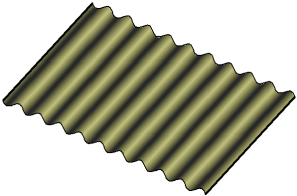
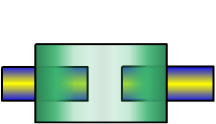
Fill usage examples
The created fill can be edited. Defining points The fills are the starting point and characteristic points of the fill contours.
When editing a fill, consider the following.
•When editing, you can change the position of the initial fill point of all types, except for the monochromatic and linear gradient.
•To prevent the fill color from changing when you select it, enable the option Always show the fill with the set color in the dialog. Edit. When you select a fill, only its outline will be highlighted.
•All fill areas created during construction are a single object, even if they are non-adjacent. Editing commands, delete, etc. apply to the whole object.
Additional features when building...
See Also
