|
Reference number |
Scroll |
Reference numbers are placed on leader landings in the drawing.
In associative drawings, you can create reference numbers associated with BOM objects. To do this, specify the leader's starting point within the area limited by the component's projection geometry, or on one of the geometric objects. The system defines which model component the area (object) belongs to, and the corresponding reference number is passed from the BOM.
|
To help the system determine which component contains the specified projection area, component data must be available as you work with the drawing. You need to load data from the model to do this. More details about data loading... If data are not loaded from the model, the component cannot be identified when you specify a point within the area, so you cannot pass its reference number from the BOM. The created designation will not be linked to the BOM object. |

|
For correct functioning, it is recommended to Creating a BOM Before setting reference numbers in the drawing. |

While working in parametric mode Between the created designation and the component face projection, an associative link is formed. It keeps the position of the leader's starting point within the projection area (or on its border) if component geometry changes.
|
If required, you can create reference numbers in non-associative drawings or fragments. In this case, created designations will have no link with the BOM. Details... |

The procedure for creating a reference number
|
Before you set reference numbers, enable the parametric mode. Then the designations will be associated with the component projections specified for their setting and will be rebuilt when these projections are changed. |
1.Call the Position designation command .
.

2.Specify the leader's starting point within the component projection area or on one of its objects. The component projection the selected area/object belongs to is highlighted. The screen displays a designation phantom with the reference number passed from the BOM.
|
To set reference numbers in a view, it doesn't have to be the current view. The view automatically becomes the current view after you specify the starting point of the leader. |
3.Specify the starting point for the landing.
|
To set the position of designation points, you can use Snaps and geometrical calculator. |
4.Create the required number of branches of the leader line. Details...
5.If required, create additional landings with reference numbers. To do this, click the projection of the component that must have the number of the additional landing.
The new leader landing will appear on the designation, and the number of the specified component will be passed from the BOM.
6.Set up the Parameters for designation of position.
7.To complete changes of the position designation, click Create an object  . The reference number will be created. The reference number passed from the BOM is dark blue (see the figure).
8.To complete operation of the command, click Complete  .
.
|
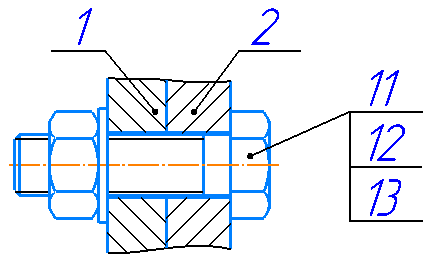
Setting reference numbers in associate drawing
Reference numbers not linked to the BOM
In a non-associative drawing or fragment, you can create reference numbers that are not linked with the BOM (reference numbers will be displayed in black).
The procedure to create designations is the same, as described above. The difference is as follows:
•You can specify the leader's starting point in any place of the drawing/fragment.
•If the point is set on a graphical object, the designation created with the parametric mode, will be associatively connected with this object.
•If the point is set in the empty space, the designation will be non-associative, regardless of whether the parametric mode is enabled or not.
•On the phantom of the designation and in the Text field of the Parameters toolbar, the position number suggested by the system is displayed. You can change the number manually within the Subprocess of text input This subprocess is triggered after clicking with the mouse in the Text field of the Parameter Panel or in the text field of the phantom designation in the graphic area. Enter the required reference number into the field on the phantom. Double-clicking this field allows to switch to insertion of a text template.
•You can only create additional landings with reference numbers when editing the designation caption within the text input subprocess. These landings are built automatically during input of each new line of text. To create a new line, position the cursor at the end of the existing line and press the <Enter>. Enter the text on the created landings manually.
