|
Centerline of face projection |
Scroll |
Using the Auto Centerline command you can create in associative view of the the drawing of the face projection centerline, which has the shape of a surface of revolution. This may be required, for example, if automatic creation of centerlineswas disabled.
You can also build centerlines of the face projections to replace centerlines created automatically or transferred from the model. An exception is the centerlines passed from the model and built by point objects or edges as these lines, if deleted, are still stored in the drawing in the hidden form.
Depending on how the face is projected, the centerline of the face projection may be a straight line or a circular/elliptic arc.
|
You can create a centerline of the face projection if data about this face stored in the model are available when you work with the drawing. You need to load model data to do this. More information about data loading... |

It is recommended to create centerlines of the face projections in the parametric mode. In this case, an associative link is formed between the created centerline and the face projection. If this link is missing, duplicate centerlines may appear in the view.
|
To build face projection centerlines in a drawing designed in KOMPAS-3D version 19 or earlier, you need to preliminarily rebuild the drawing. |

Drawing procedure
|
Before creating centerlines, enable the parametric mode. Then the centerlines will be associated with the face projections specified for their setting and will be rebuilt when these projections are changed. |

1.Run the Auto Centerline  command.

After invoking the command, the cursor will take the shape of a square "trap".
|
The size of the cursor’s trap can be changed in the dialog for setting up the cursor. |
2.Move the cursor into the area limited by the face projection contours (projection borders must not get into the cursor "trap"). When the phantom of the created centerline appears on the screen, click with your mouse.
The centerline of face projection will be created.
|
|
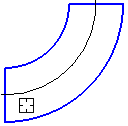
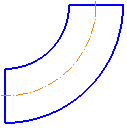
Building a face projection centerline
If this is not the current view, the phantom of the centerline is not displayed on the screen. After you click within the area with your mouse, the view becomes current and the centerline is created in it.
|
To create a centerline, it does not matter which construction method is used — By objects or With specifying borders — it is enabled in the Auto Centerline command. |
3.To complete operation of the command, click Finish  .
.
Methods of handling centerlines of face projections
You can edit centerline parameters. To do this, select the required centerline and set new parameter values on the Parameter Panels.
Besides, you can change the centerline length by moving its defining points. The new position of the point is saved in the drawing. If you move the defining point manually, it loses the link with the source model (changes in the model do not affect point position).
If required, you can delete the created centerlines using the key <Delete>.
|
The associative view may contain both lines created using the Auto Centerline command and projection centerlines. If you disable creation of centerlines when setting up view parameters, only auto-created centerlines will be removed from the view. |
See Also
Centerline parallel/perpendicular to segment
Bisector of angle formed by two segments
